Publishing
How to go back a step and how to publish
Undo the last step with the arrow at the top right. When the page looks right, press Publish.
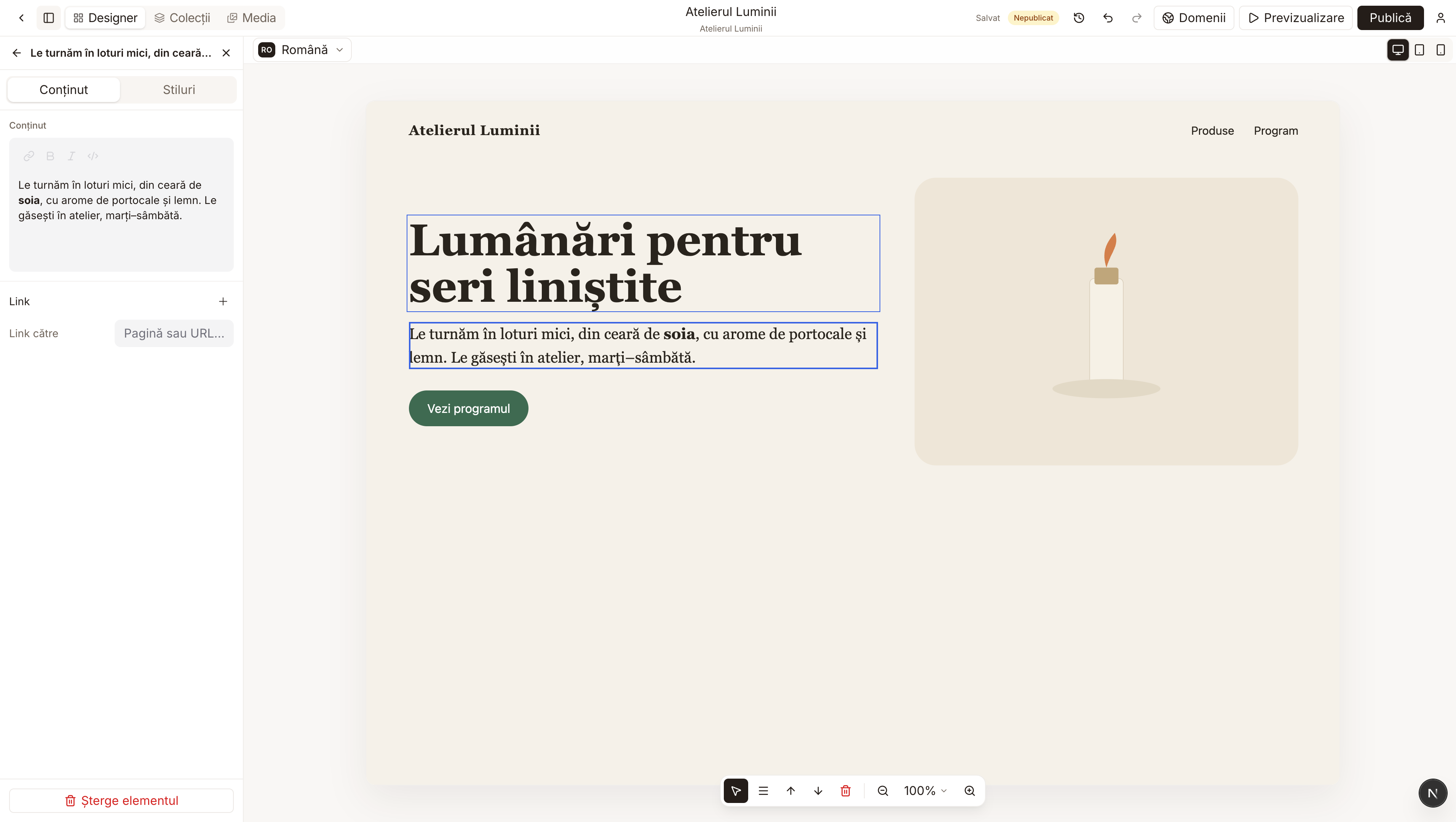
Changes save on their own. After a change, Saved may show briefly at the top. Visitors still do not see the new version until you press Publish. While that is the case, the word Unpublished with a yellow dot sits next to the page name.
1. Go back one step
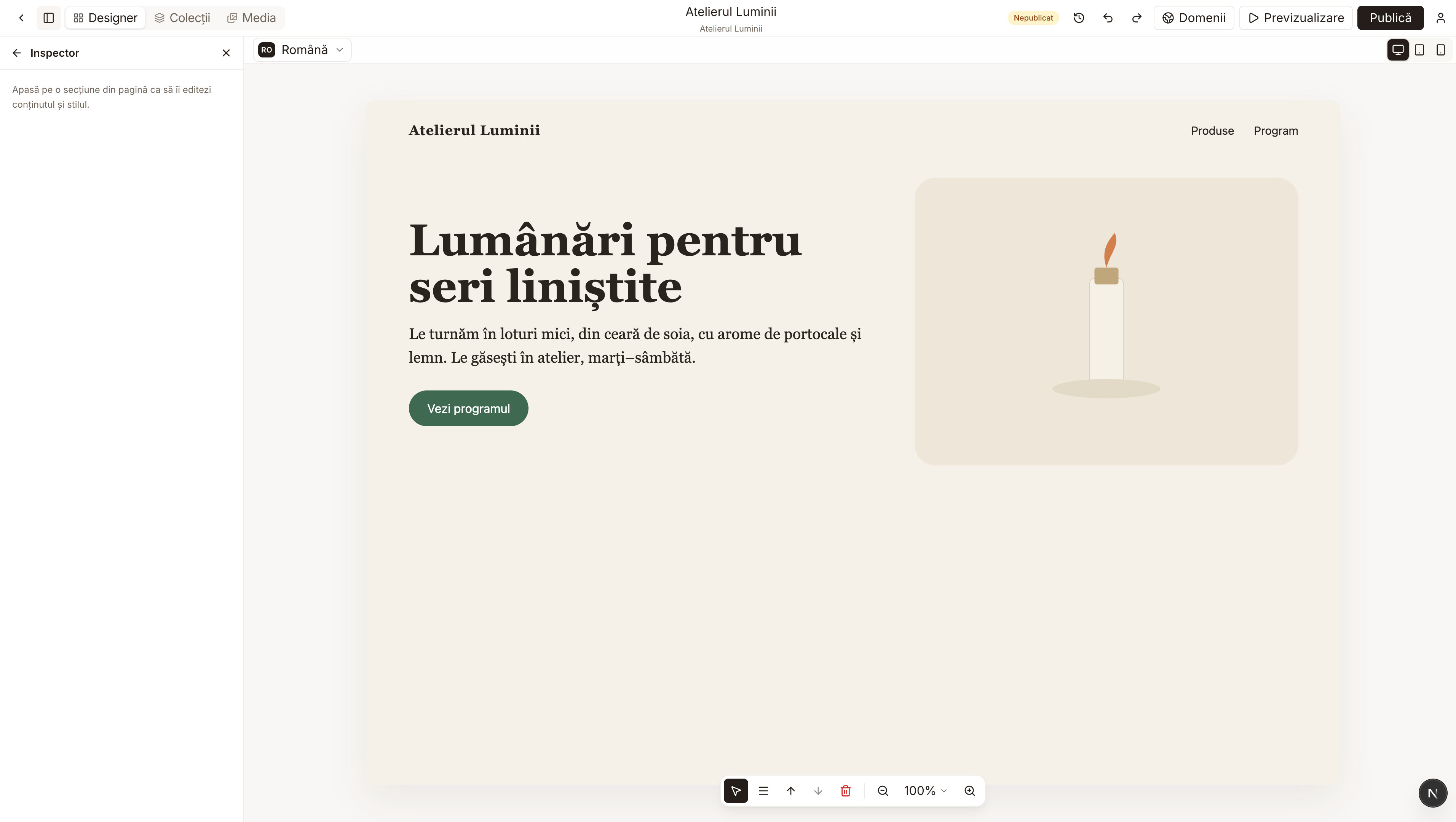
At the top, next to Unpublished, there are two curved arrows. The one pointing left is called Undo and reverses the last change. The one pointing right is called Redo and puts back the step you just undid.
In the example, the word "soia" was bold.
After one click on the left arrow, the word goes back to normal text. The rest of the page stays as it was.
2. Publish
When the page looks the way you want, press Publish, the black button at the top right. While it works, the button says Publishing... When it is done, Unpublished turns into Published, with a green dot. From then on, visitors see this version.
If you change something after publishing, Unpublished shows again. Visitors keep seeing the old version until you press Publish once more.