Images
How to change a photo
Click the photo, then Change, and pick an image from your computer.
A photo is replaced without moving the rest of the page. The spot stays the same. Only the image changes.
1. Click the photo
One click on the image selects it. On the left you see a small copy of the photo and two buttons: Change and Edit.
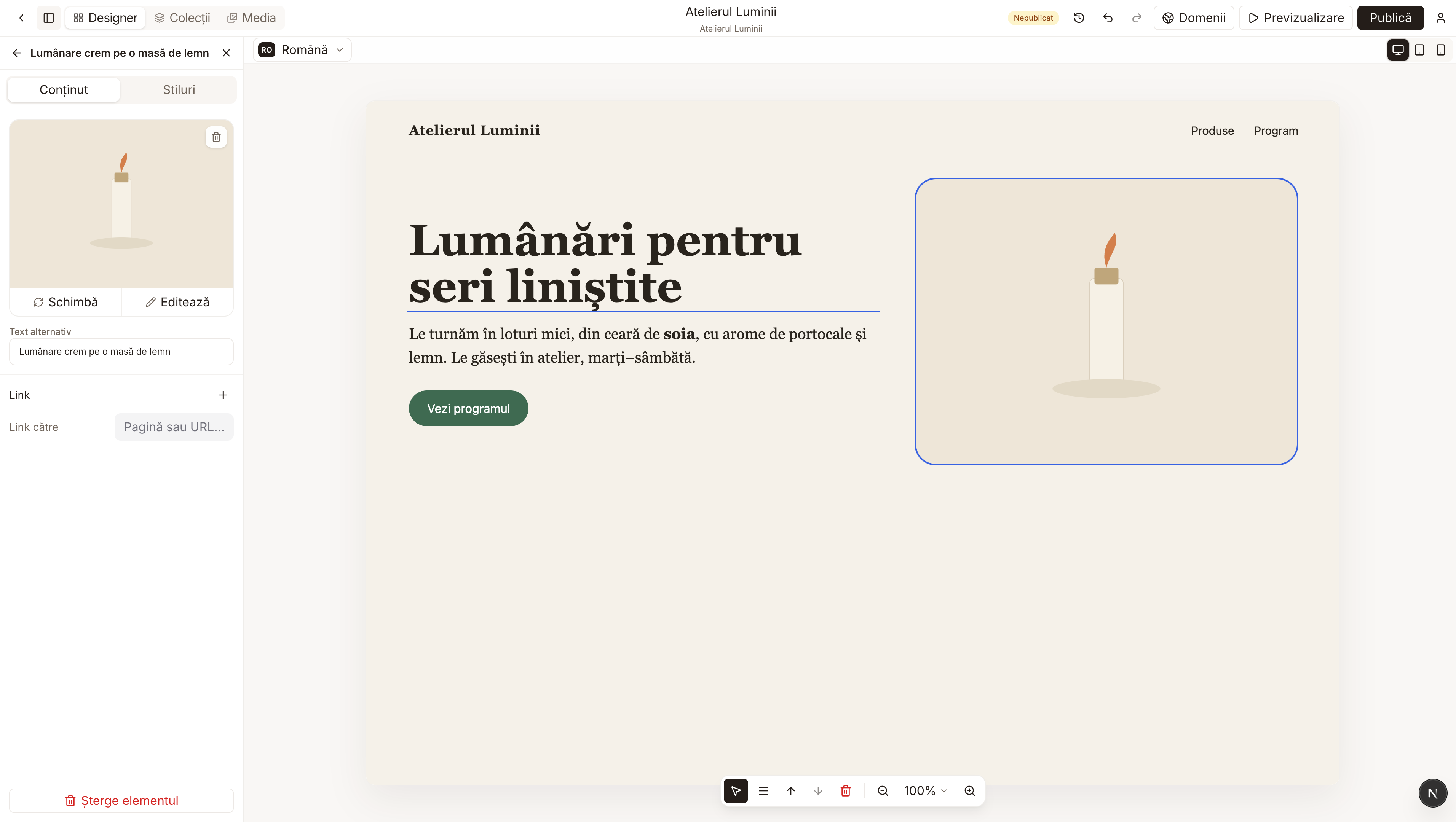
2. Press Change
The "Choose an image" window opens. If you have not uploaded anything yet, the middle of the window says Your library is empty.
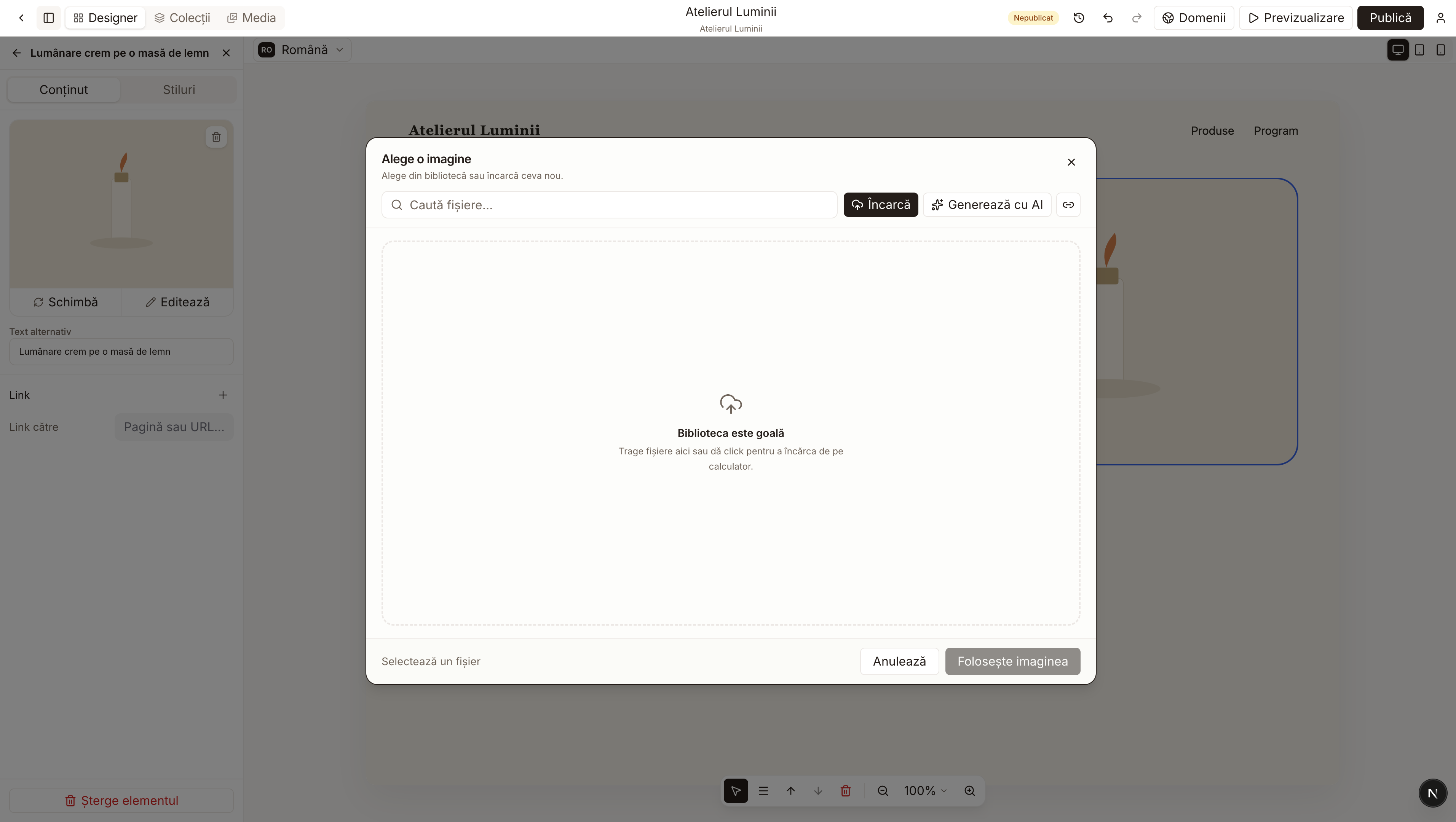
Drag the file from your computer into the dotted frame, or press Upload and pick it there. When the photo shows up in the list, click it, then press Use image, at the bottom right.
3. Say what it shows
Under Alt text, write a short sentence, for example "Cream candle on a wooden table". People who cannot see the photo hear this text. No names or other personal details are needed.
Edit opens the cropping, if you want to keep only part of the photo. The bin in the corner of the image removes it from the page. If you only want another photo, stick to Change.